How to Add a Transparent Signature to a PDF
Add a transparent signature PNG to a PDF with Adobe Acrobat Reader desktop, position it, save a copy, and check for white boxes or missing strokes.
To add a transparent signature to a PDF, prepare a PNG with the paper removed and import it through the signature tool in Adobe Acrobat Reader desktop. Place it in the intended area, save the PDF, and reopen the saved file to check the result.
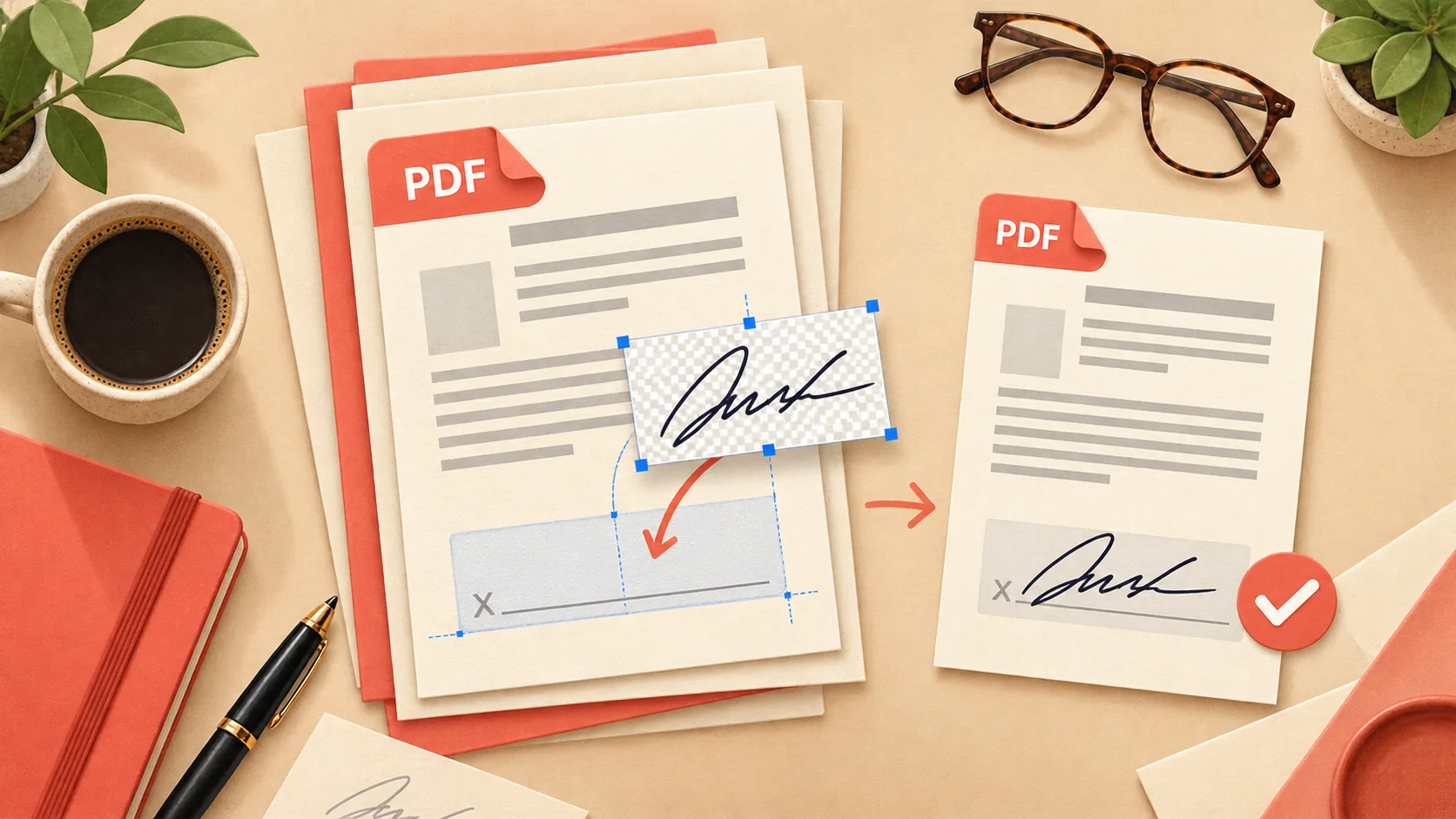
This guide covers placing your own signature image in a local PDF. It does not cover sending agreements to other signers or creating a certificate-based digital signature. If someone sent you a dedicated signing request, use that request's workflow rather than editing a separate downloaded copy. The cover illustrates placing a signature in a PDF.
What you need before adding the signature
Have the PDF, a clear signature image, and Adobe Acrobat Reader desktop available. Reader's local Fill & Sign workflow does not require the paid Edit PDF tool. Adobe distinguishes its free Reader functions from paid PDF editing in the Reader FAQ. The desktop instructions below were checked against Adobe's documentation on September 6, 2026; they follow the classic Fill & Sign interface. Newer interface layouts may place the signing controls elsewhere.
The PDF must permit the operation. If signing is unavailable, check the document's restrictions or ask its sender for the correct signing version. Converting or printing a restricted document to bypass the intended workflow can change what the sender receives.
Prepare a transparent signature PNG
Open the signature background remover, sign in, and choose Upload Your Photo. Use a JPG, PNG, or WebP signature image; SignatureClear's image uploader does not accept the PDF itself. Wait for processing and select Download Result to keep the PNG.
New accounts receive 5 one-time sign-up credits, valid for 30 days. Each successful removal uses one credit. There is no monthly free refill; see current plans for further use.
Check the PNG over a shaded background before importing it. Inspect long strokes, small dots, and loops against the source. If you need help separating an opaque file from a transparent one, use the transparent signature tutorial.
Add the transparent signature to your PDF
In the classic Reader desktop interface:
- Open the PDF and choose Tools → Fill & Sign, or the signing icon.
- Open the signature control and choose to add a signature. In the signature panel, select Image and browse to your PNG.
- Inspect the preview, then select Apply and click the intended position on the page.
- Select the placed signature to adjust its position and size with the available field controls.
These steps follow Adobe's Reader signing instructions. If you enable Save Signature while signed in, Adobe can store that signature for reuse in its cloud service. Review that option before applying.
Keep the handwriting inside the intended signing area without covering nearby labels. Zoom out to normal reading size: a signature that seems small at a high zoom may already be large enough on the actual page.
Save a copy and inspect it again
Save the PDF under a clear new filename so you retain the unsigned original. Close and reopen the saved copy. Confirm that the signature remains on the correct page, its size is sensible, and nearby text is readable.
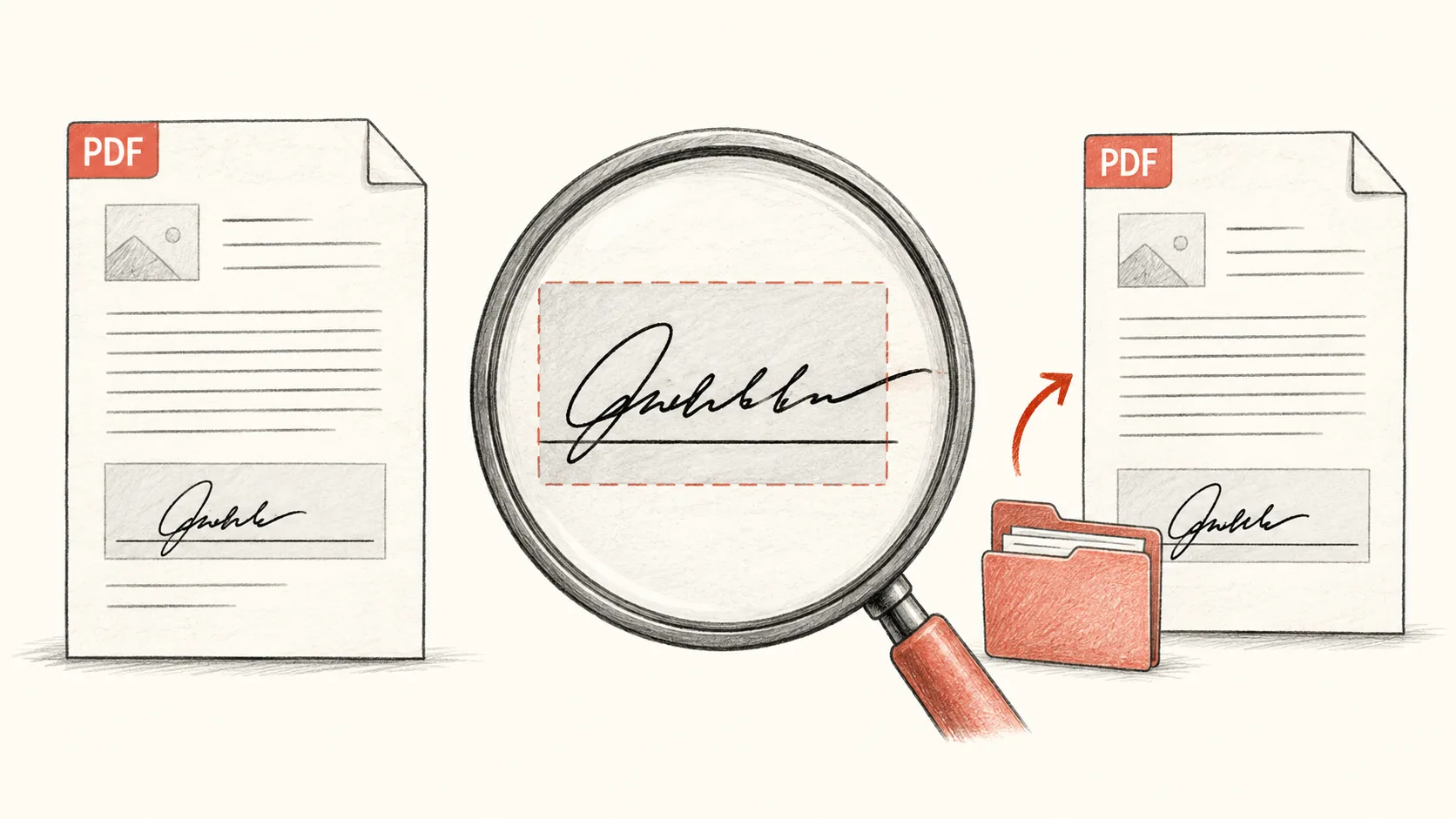
This is an illustration of the inspection workflow, not an Acrobat screenshot. Check your actual PDF before and after saving; the illustration does not represent a background-removal result.
On a white page, opaque white pixels can be hard to spot. Check the source PNG over a colored area separately. In the PDF, inspect where the signature meets any existing shading or line. A visible rectangular patch suggests an opaque image was inserted; a thin halo suggests some background pixels survived removal.
If the handwriting looks damaged, return to the original source rather than repeatedly saving the PDF. Changing its position cannot recover ink that disappeared during background removal.
Common problems with PDF signature images
| Problem | Next check |
|---|---|
| White rectangle around the signature | Confirm the imported file is the downloaded PNG, not the original JPG. |
| Fine strokes are missing | Compare the PNG with its source and consider a clearer photo or scan. |
| The signature is too soft | Reduce its display size or prepare a higher-quality source. |
| Signing controls are unavailable | Check whether the PDF is restricted or requires the sender's signing workflow. |
If you still control the editable source document, you can also insert the signature in Word before exporting the final PDF. That is useful when you need to adjust the surrounding paragraph as well as the picture.
Frequently asked questions
Do I need Acrobat Pro for this workflow?
The Reader Fill & Sign image workflow described here does not use paid PDF content editing. Other operations, including editing existing PDF text, have different requirements.
Can I upload my PDF to SignatureClear?
This tool accepts signature images, not PDF documents. Prepare the signature PNG separately, then place it in the PDF application.
Why is there still a pale edge?
Transparency can coexist with leftover paper pixels. Check the PNG over a contrasting background and compare it with the original; better source lighting may help.
Is importing an image the same as a digital certificate signature?
No. This tutorial places handwriting visually. Certificate-based signing is a separate workflow with its own identity and validation features.
Keep both the PNG and the saved PDF
To add a transparent signature to a PDF reliably, inspect the source PNG and the saved document. Prepare the signature image, keep an original copy, and verify the file you intend to share.
Author

Categories
More Posts

Remove White Background from a Signature in Word
Prepare a transparent signature PNG, insert it into Word, adjust its size and text wrapping, and troubleshoot white boxes after saving.
How to Make Your Signature Transparent
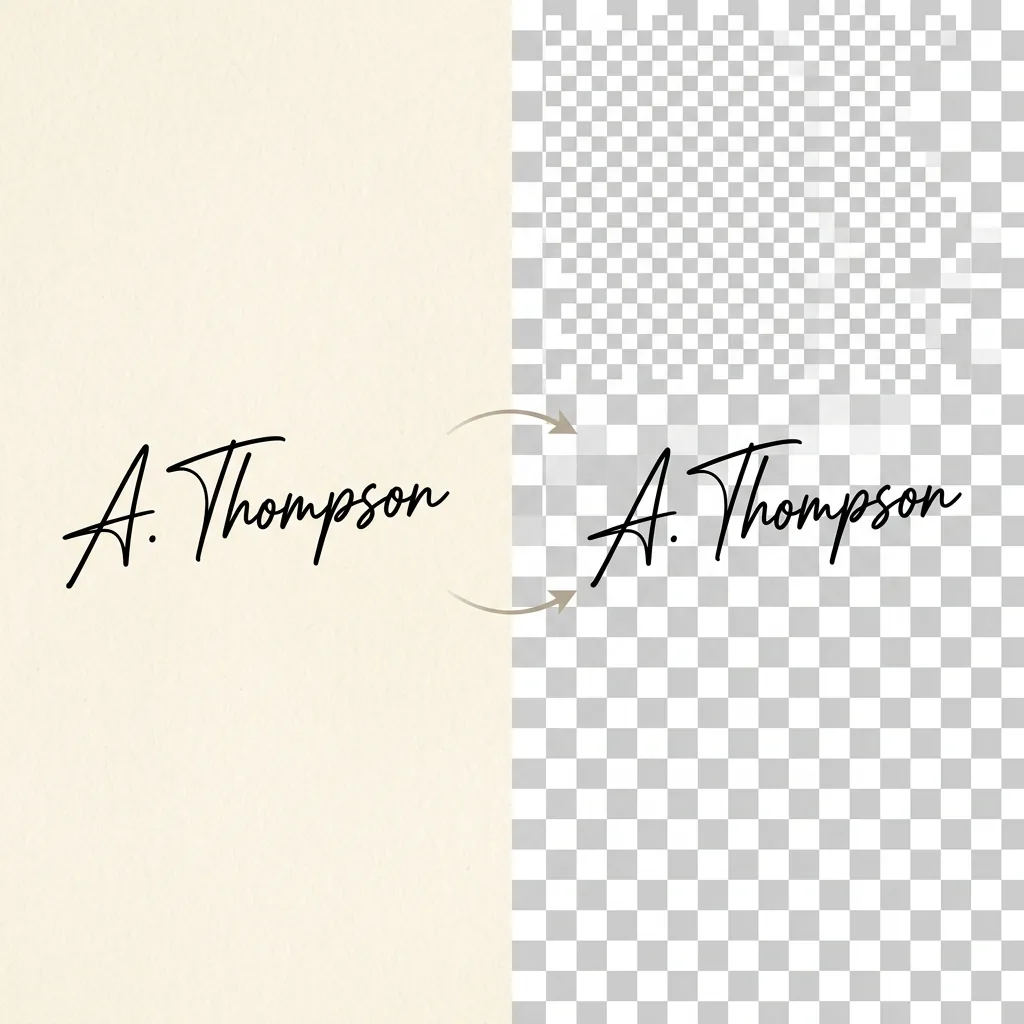
Turn a signature photo into a transparent PNG, check the edges, and avoid the white box when you insert the result into a document.
How to Remove the Background from a Signature Photo
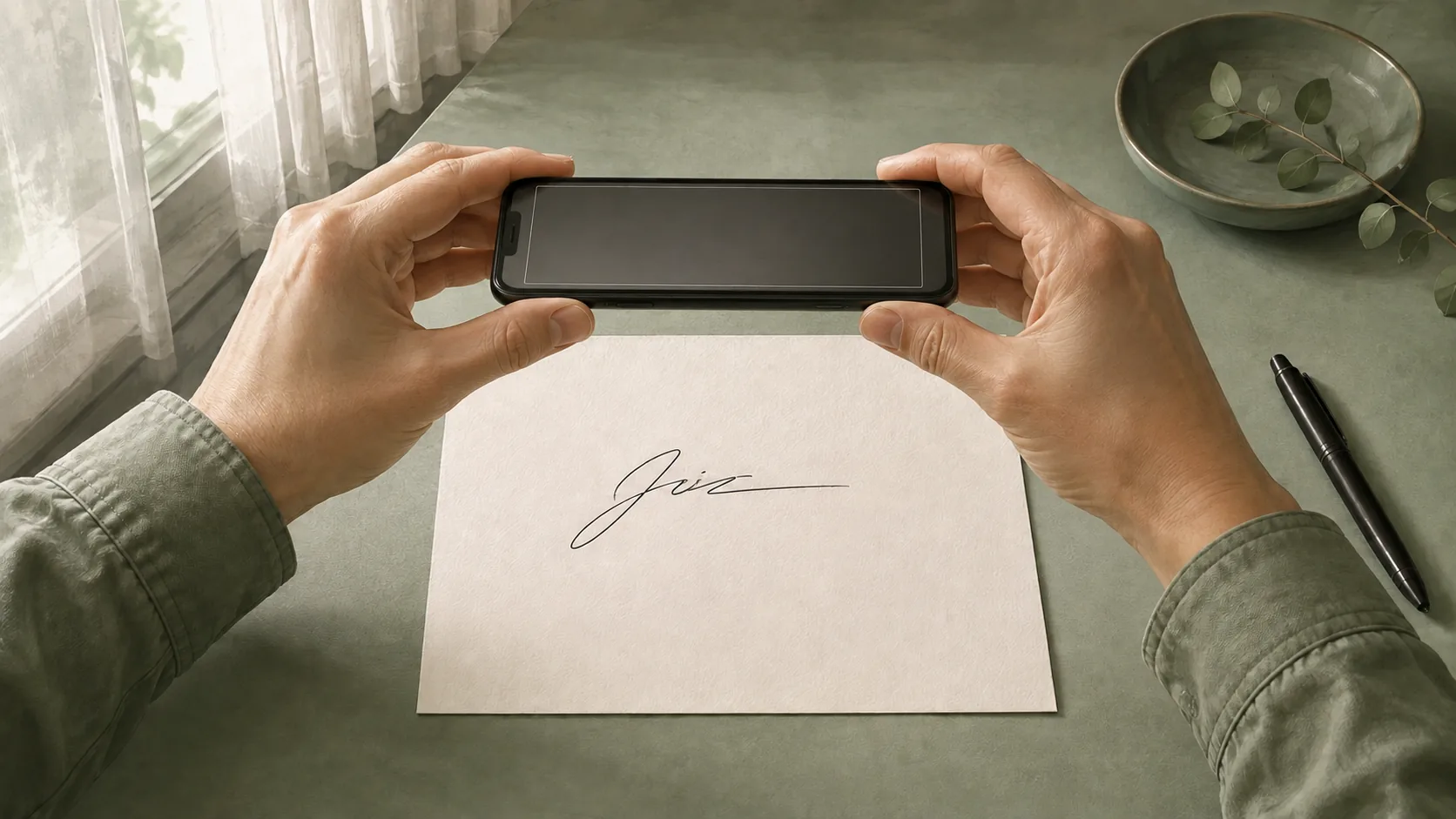
Photograph a signature with even light, crop safely, remove the paper background, and check the transparent PNG for faint or missing pen strokes.
Newsletter
Join the community
Subscribe to our newsletter for the latest news and updates