How to Insert a Signature in Excel Without a White Background
Insert a transparent signature in Excel, place it over cells, resize it without distortion, and verify the workbook after saving or exporting it.
To insert a signature in Excel without a white background, prepare the handwriting as a transparent PNG and add it as a picture placed over the cells. You can then resize and position the signature while keeping worksheet colors, borders, and text visible around the ink.
This tutorial covers a visual signature image for an approval sheet or other low-risk internal document. It does not create identity verification, an audit trail, or a certificate-based digital signature. The screenshots were captured from a demonstration workbook in desktop Excel 16.0 on September 13, 2026. The ribbon language and exact labels may differ on your installation.
Prepare a transparent PNG before opening Excel
Start with a clear photograph or scan that contains the complete signature. Avoid screenshots of an already compressed image because enlarging them in a worksheet can expose soft edges and missing detail.
- Open the signature background remover and sign in.
- Upload a JPG, PNG, or WebP image of the handwriting.
- Compare the processed result with the source. Check small dots, narrow loops, and the ends of long strokes.
- Download the result as a PNG. Keep that file instead of converting it to JPG, which does not preserve transparency.
New accounts receive 5 one-time sign-up credits, valid for 30 days. Each successful removal uses one credit. See current plans if you need to process more images.
A transparent file can still contain pale paper residue or damaged ink. The transparent signature guide explains how to inspect the PNG over a contrasting background before placing it in a document.
How to insert a signature in Excel
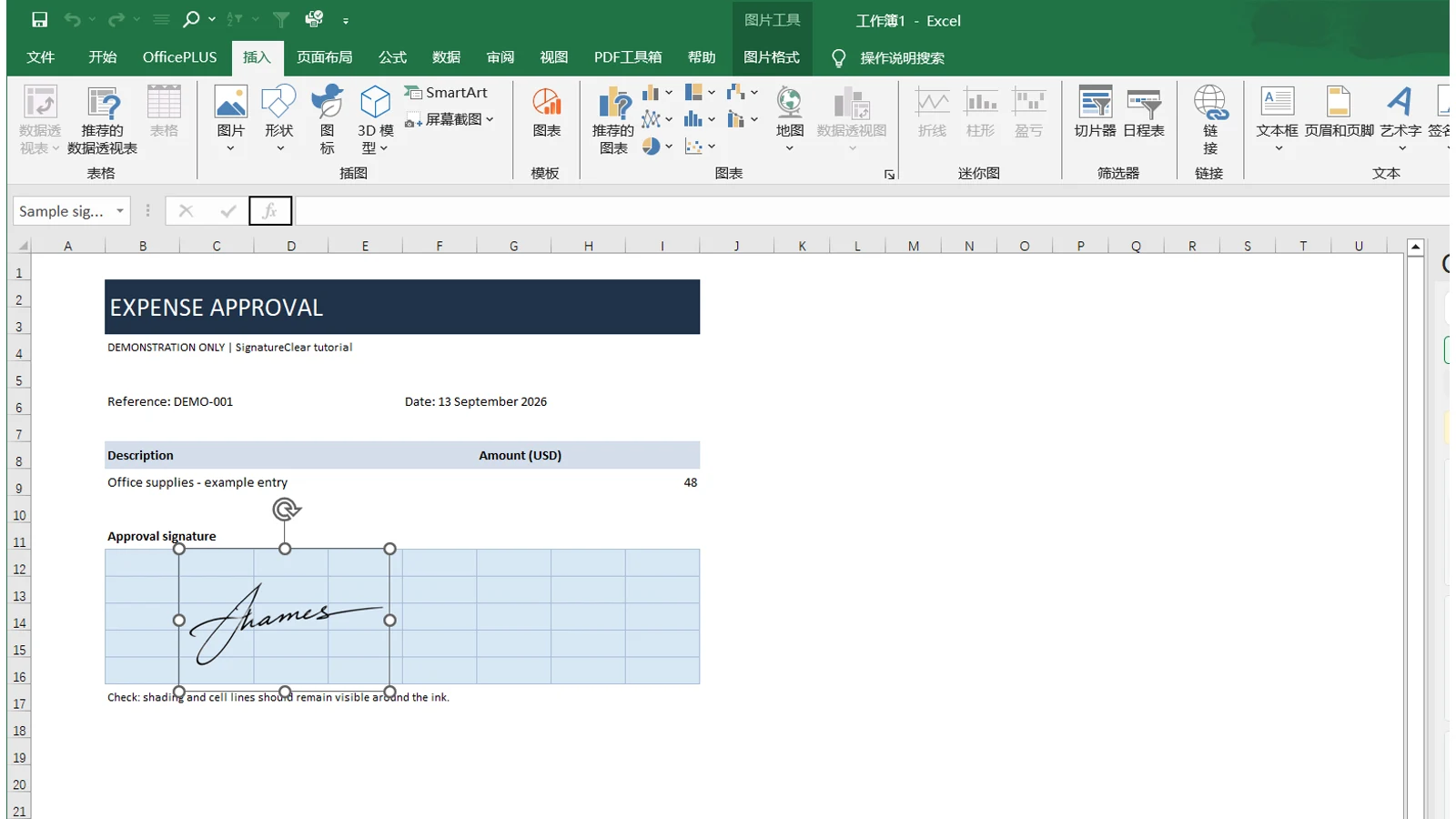
Open the workbook and select a cell near the intended signing area. In current versions of Microsoft 365 and Excel 2024, choose Insert → Pictures → Place over Cells, then select the PNG from your device. Some desktop versions show Insert → Pictures → This Device without the extra placement menu.
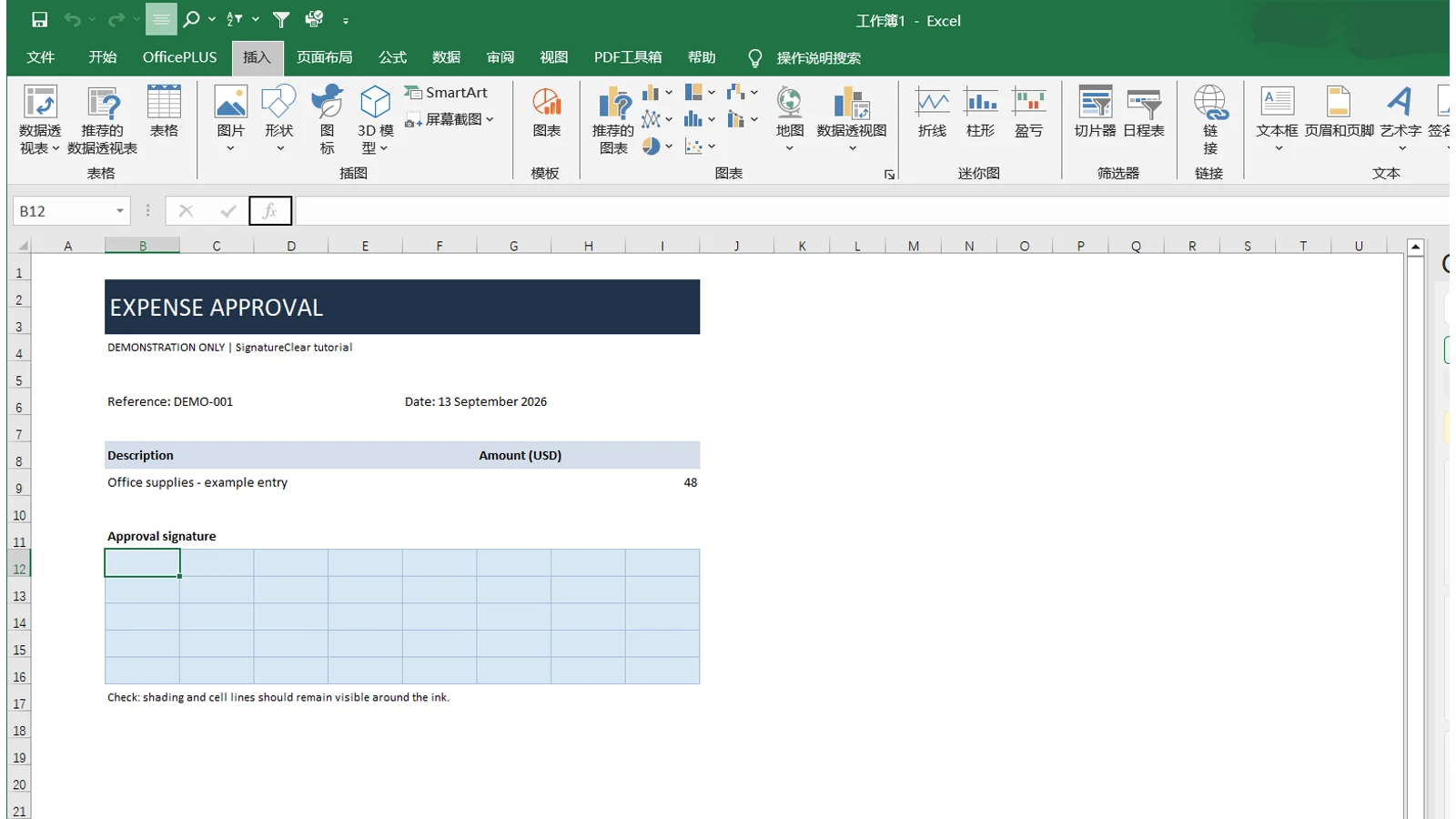
Microsoft distinguishes pictures placed in a cell from pictures placed over cells in its Excel picture instructions. A signature usually works better as a floating picture because it can span several cells and sit above an existing signature line.
After insertion:
- Select the picture so its corner handles appear.
- Drag a corner handle to resize it while preserving the handwriting's proportions.
- Drag the picture into the signing area.
- Click another cell to see the signature without selection handles.
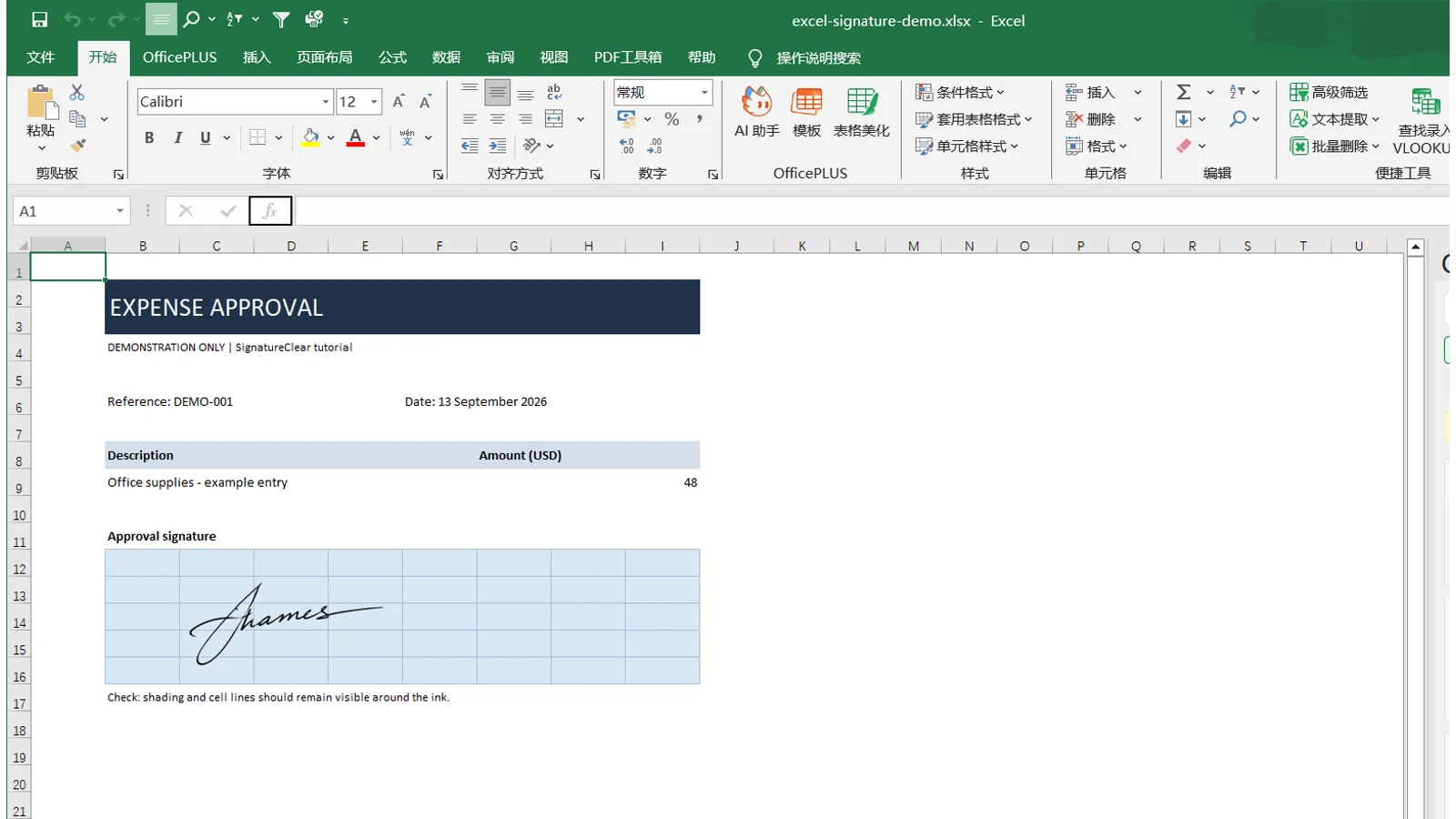
The screenshot uses an existing sample signature, not a real person's private signature. The blue cell shading and grid lines remain visible around the ink, demonstrating that the surrounding pixels in the PNG are transparent.
Keep the signature aligned with the worksheet
A picture inserted over cells is a floating object. If rows or columns may change later, right-click the picture, open Format Picture, and review Size & Properties → Properties. Choose the behavior that fits the workbook: moving with cells can help an approval block stay aligned, while a fixed position may suit a locked form.
Resize from a corner rather than a side handle. Pulling only the width or height can make the handwriting look stretched. If the signature seems too large even at a reasonable width, crop excess transparent space around the image rather than flattening the letters.
Do not use Excel's whole-picture transparency control to remove a white background. Microsoft documents that this control changes the opacity of the entire picture, from 0% to 100%. Increasing it also fades the ink. Selectively removing the paper before insertion produces a cleaner and more reusable result.
Check the transparent signature after saving
Save the workbook, close it, and reopen the file. Confirm that the signature remains on the correct sheet and has not shifted away from the approval line. The demonstration workbook below was saved as XLSX, reopened in Excel, and checked with one picture still present.
If the workbook will be printed or shared as a PDF, inspect that output separately. Check the print area, page scaling, signature size, and surrounding labels. Keep the editable XLSX and the original PNG so you can correct placement without degrading the image.
For a document-first workflow, you may prefer to insert a transparent signature in Word and then export the document. If the final file already exists as a PDF, follow the transparent signature PDF tutorial.
Fix common Excel signature problems
| Problem | What to check |
|---|---|
| A white rectangle covers the cells | Reinsert the downloaded PNG; you may have selected the original JPG or a screenshot. |
| The black ink also looks faded | Reset whole-picture transparency and use a PNG with its background already removed. |
| The signature stretches sideways | Undo the resize and drag a corner handle instead. |
| The image moves after row changes | Review the picture's Size & Properties setting and test the expected row edit. |
| The exported PDF cuts off the signature | Check Excel's print area, page breaks, and scaling before exporting again. |
If thin strokes disappear, return to the source image. Sharpening or repeatedly resaving a damaged copy cannot reliably restore handwriting that is no longer present. The guide to removing a background from a signature photo includes capture and cropping checks for a better starting image.
Frequently asked questions
Should I use PNG or JPG for a signature in Excel?
Use PNG when the cells, borders, or colors beneath the signature need to remain visible. JPG can display the handwriting, but it does not preserve transparent pixels.
Should the signature be placed in a cell or over cells?
Place it over cells when you need free positioning across an approval line. Placing an image in a cell treats it as a cell value and constrains it to that cell's layout.
Is a pasted signature image a digital signature?
No. It is a visual image of handwriting. If the document needs signer verification, tamper evidence, or an audit trail, use an approved electronic-signature or certificate workflow.
Why does my signature look blurry in Excel?
The source may be too small, previously compressed, or enlarged beyond its useful resolution. Start from the clearest available photo or scan, crop it carefully, and avoid repeated screenshots.
Insert a signature in Excel and verify the final file
The dependable workflow is simple: prepare a transparent PNG, insert the signature in Excel as a picture over cells, resize from a corner, and inspect the saved or exported file. When your source image is ready, remove its background and keep the resulting PNG for future spreadsheets and documents.
Author

Categories
More Posts

How to Add a Transparent Signature to a PDF
Add a transparent signature PNG to a PDF with Adobe Acrobat Reader desktop, position it, save a copy, and check for white boxes or missing strokes.

Remove White Background from a Signature in Word
Prepare a transparent signature PNG, insert it into Word, adjust its size and text wrapping, and troubleshoot white boxes after saving.

How to Make Your Signature Transparent
Turn a signature photo into a transparent PNG, check the edges, and avoid the white box when you insert the result into a document.
Newsletter
Join the community
Subscribe to our newsletter for the latest news and updates